Survey Points to AutoCAD in Excel: POINT Commands, Numbers, Levels and Codes
- XLSX
- 15 KB
- Version 1.0
- English
- October 23, 2026
Ready to download
Editable Excel file
This sheet is also available in: العربية
Every surveyor knows the scene: an Excel file with hundreds of points from the instrument, and the job of drawing them in AutoCAD before design can start. Doing it by hand is slow and invites swapped northing and easting or a forgotten point, and dedicated road software is not always installed on every machine.
This sheet makes Excel the go-between: you paste the points into one table and it generates ready AutoCAD commands for each point. You copy them into the command line and AutoCAD draws the points and the text of their numbers, levels and codes on separate layers. A separate column gives a PNEZD CSV for survey software.
Who is it for?
- Surveyors who want to plot survey points fast in plain AutoCAD
- Site engineers who receive points from the survey crew and want to see them on the drawing
- Students and trainees learning how coordinates relate to a drawing
- Anyone who must turn a coordinate table into a drawing without extra software
What is inside the sheet?
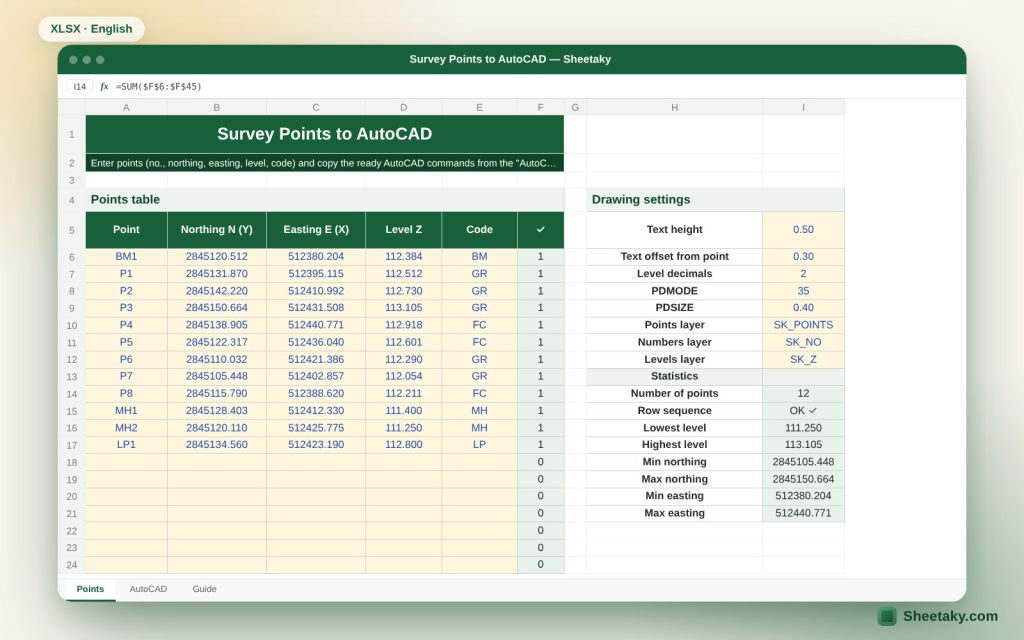
- A table for forty points: number, northing N, easting E, level Z and code
- Settings: text height, offset, level decimals, PDMODE, PDSIZE and layer names
- Ready POINT commands and text commands for numbers, levels and codes
- A CSV column in number, northing, easting, level, code order
- Statistics: point count, lowest and highest level, northing and easting range and a row-sequence check
- A full guide sheet
How to use it
- Open the “Points” sheet and paste or type your points into the yellow table in sequence with no empty rows. Northing is Y and easting is X.
- Adjust text height, layer names and PDMODE for your drawing scale.
- Open the “AutoCAD” sheet, select the first column for the number of rows shown at the top, and copy.
- In AutoCAD click inside the command line and paste. The points appear on the drawing. Repeat with the number, level and code columns.
- To import into other software copy the fifth column into a text file and give it the csv extension.
Formulas used
Point command = POINT E,N,ZNumber text = -TEXT (E + offset),(N + offset),0 height 0 numberLevel text = -TEXT (E + offset),(N + offset − 1.3 × height),0 height 0 levelCSV line = number,N,E,Z,code
Worked example from the sheet itself
The sample holds twelve survey points of a small site, from BM1 to LP1.
- The first point BM1 has northing 2845120.512, easting 512380.204 and level 112.384.
- Its command is POINT 512380.204,2845120.512,112.384 and its number text is -TEXT 512380.504,2845120.812,0 0.5 0 BM1.
- The lowest level is 111.250 at manhole MH2 and the highest is 113.105 at P3.
Why people swap northing and easting
AutoCAD reads a point as X,Y, that is easting first and then northing. Most instruments and survey files write the northing first (N,E), and some use the order PNEZD while others use PENZD. If you paste the coordinates in the wrong order the points appear flipped about a 45 degree axis, so the site looks like a mirror image of the real one.
The sheet removes the problem: you type northing in one column and easting in another and it places them in the correct order inside the command. In the CSV it keeps the familiar PNEZD order of number, northing, easting, level, code.
A quick check: in most metric systems such as UTM the northing is in the millions and the easting in the hundreds of thousands. If the bigger value sits in the easting column the order is probably reversed.
How pasting commands into AutoCAD works
The AutoCAD command line accepts several pasted lines at once and treats the end of each line as if you pressed Enter. So it is enough to select the cells of a column in Excel, copy them and paste inside the command line. With many points it is better to save the lines in a text file with the scr extension and run it with the SCRIPT command, which avoids any paste size problem.
Three rules matter. First, copy only the number of rows shown above the column: empty rows after the points act as Enter in AutoCAD and can repeat the last command. Second, do not put spaces inside descriptions because a space acts as Enter, which is why the sheet turns spaces in codes into underscores. Third, make sure the current text style has zero height (Standard in the default template). If it has a fixed height AutoCAD will not ask for the text height and the remaining answers will shift.
The commands used are POINT, -TEXT, -LAYER, PDMODE and PDSIZE. Always try them on a copy of the drawing or a new file before using them in a working drawing.
Text height and point symbol for your plot scale
Text height in AutoCAD is measured in drawing units, that is metres if your drawing is in metres. To get printed text 2.5 mm high at a scale of 1:500 multiply 2.5 by 500 and divide by 1000, giving 1.25 m. At 1:1000 it is 2.5 m and at 1:200 it is 0.5 m.
The point symbol size PDSIZE is also in drawing units: a positive value gives a fixed size in units and a negative value means a percentage of the screen. The sheet sets PDMODE 35 (a circle with a plus sign) and a default size you can change.
The text offset matters because placing the number exactly over the point symbol makes it unreadable. The default 0.3 suits a large scale drawing, and you should scale it with the text height.
Organising layers for later work
The sheet separates the drawing onto four layers: points, numbers, levels and codes. The benefit is practical: when plotting you can switch off the levels layer if it is crowded, and when designing you control what you see.
You can rename the layers to match your company or consultant standard, for example starting with the project code. If you want a different colour per layer, set it once in the layer manager after pasting and it stays in the drawing.
When you do not need this sheet
If you have Civil 3D or survey software that imports points straight from a text file and builds point groups and surfaces, use its own point import, which is smarter. This sheet is for people working in plain AutoCAD or wanting a quick check of points without opening a full project.
The sheet also does not draw contours or surfaces; it draws points and text only. To draw boundaries and lines from coordinates use the “Land Boundary” sheet on the site.
Common mistakes and how to avoid them
- Empty rows between points: the sheet shows a warning “Empty row between points”. Keep the table continuous.
- A forgotten level: a dash “-” appears instead of the number in the level text, so you notice.
- Mixing coordinate systems: do not mix local points and UTM points in the same table.
- Text height too large: change it before copying instead of redrawing.
- Pasting more rows than needed: stick to the number shown above the column.
Tips for best results
- Keep an untouched copy of the instrument table and work on a copy.
- Start by pasting just three points to check the settings are right, then paste the rest.
- Keep point numbers short; long ones crowd the drawing.
Frequently asked questions
Does the sheet work with every AutoCAD version?
POINT, -TEXT and -LAYER are long-standing AutoCAD commands, so they work in common versions. The prompts differ slightly between versions, so try a copy first.
How many points does it hold?
Forty in this version. For more, split your points into batches or copy the sheet.
Can I draw lines between the points?
Yes, with the “Land Boundary, Area and Polyline” sheet, which generates a PLINE command from coordinates.
Is my point data uploaded to the site?
No. The sheet is an Excel file on your computer and sends nothing.
Download the sheet
Press the download button at the top of the page to get the Excel file. It includes a full guide sheet, yellow input cells and formulas protected from accidental edits. The sheet is also available in Arabic from the language switcher.
The AutoCAD commands follow documented syntax; we recommend testing on a copy of the drawing before relying on them.
Related sheets
Land surveying
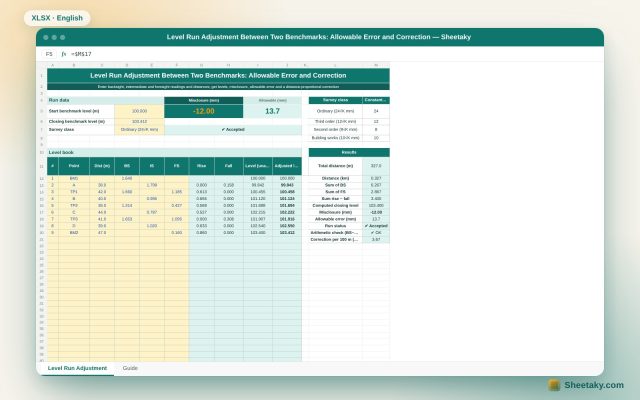
Level Run Adjustment in Excel: Misclosure, Allowable Error and Correction
An Excel sheet for a level book between two benchmarks of known level: it computes levels by the…
Land surveying
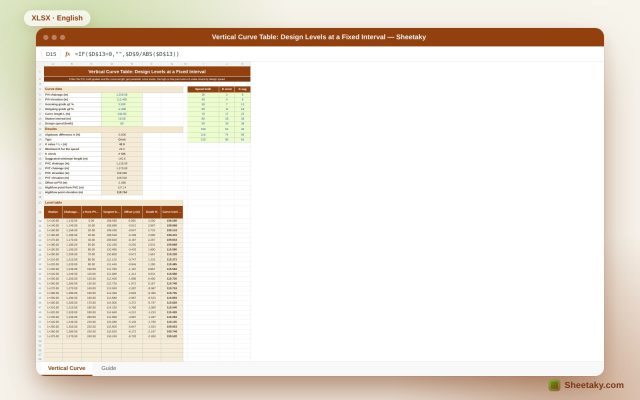
Vertical Curve Table in Excel: Design Levels, High Point and K-Value Check
An Excel sheet for designing a parabolic vertical curve between two grades: it gives a level table at…
Land surveying
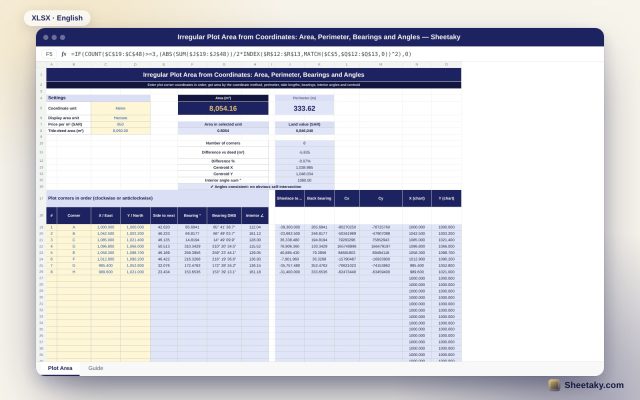
Irregular Plot Area from Coordinates in Excel: Area, Perimeter and Bearings
An Excel sheet that computes the area and perimeter of an irregular plot from its corner coordinates, with…