Land Area and Perimeter from Coordinates in Excel, with an AutoCAD Polyline and Side Lengths
- XLSX
- 19 KB
- Version 1.0
- English
- October 23, 2026
Ready to download
Editable Excel file
This sheet is also available in: العربية
One of the most common requests a surveyor gets is the area of a plot from the coordinates of its corners. The method is old and dependable, known as the shoelace or coordinate method, but doing it by hand needs a long table of multiplications and subtractions, and one small slip in a row spoils the result.
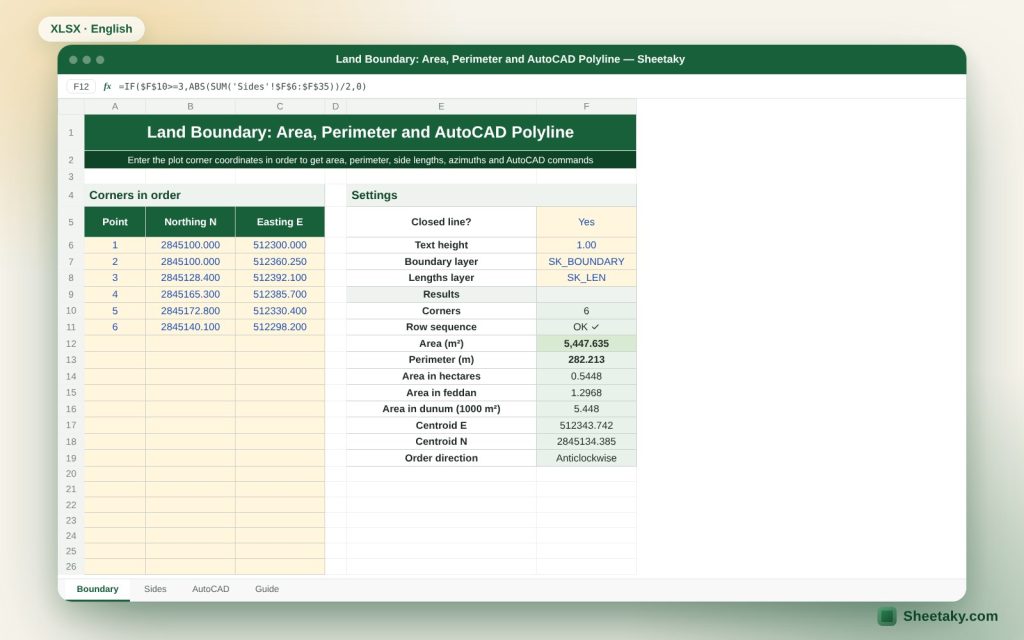
This sheet does the whole calculation straight from the coordinates: you enter the plot corners in order and get the area in square metres, hectares, feddan and dunum, the perimeter, the length and azimuth of every side in degrees, minutes and seconds, and the centroid. It then gives you AutoCAD commands to draw the polyline, write each side length along its side and place the area text in the middle.
Who is it for?
- Surveyors and subdivision engineers preparing plot sketches
- Site engineers checking plot area before building
- Contractors working out quantities tied to land area
- Students of surveying courses
What is inside the sheet?
- A table for thirty corners with northing and easting
- Area in square metres, hectares, feddan and dunum
- Perimeter, centroid and the direction of point order
- A “Sides” sheet: length, azimuth, text angle and midpoint of each side
- An “AutoCAD” sheet: PLINE polyline, side lengths and area text
- A guide sheet
How to use it
- Enter the plot corners in order around the boundary, clockwise or anticlockwise, with no empty rows.
- Choose whether the line is closed and adjust text height and layer names.
- Read the area, perimeter and centroid in the side panel.
- Review the side lengths and azimuths in the “Sides” sheet and compare with the official plan.
- Copy the polyline command, then the lengths and area commands, from the “AutoCAD” sheet and paste them into AutoCAD.
Formulas used
Area = ½ × | Σ (Eᵢ × Nᵢ₊₁ − Eᵢ₊₁ × Nᵢ) |Side length = √(ΔN² + ΔE²)Azimuth = angle whose tangent is ΔE ÷ ΔN, corrected to 0–360Centroid E = Σ (Eᵢ + Eᵢ₊₁) × (Eᵢ × Nᵢ₊₁ − Eᵢ₊₁ × Nᵢ) ÷ (3 × Σ (Eᵢ × Nᵢ₊₁ − Eᵢ₊₁ × Nᵢ))
Worked example from the sheet itself
The example is a six-point plot with point 1 at northing 2845100.000 and easting 512300.000.
- The area is 5,447.635 m², that is 0.5448 hectare and 1.2968 feddan.
- The perimeter is 282.213 m, and the first side from 1 to 2 is 60.250 m long at an azimuth of 90°00′00″, exactly east.
- The centroid is at easting 512343.742 and northing 2845134.385.
How the shoelace formula works
Imagine dropping a perpendicular from each side of the plot onto the horizontal axis, forming trapezoids between each side and the axis. The sum of the trapezoids lying “under” the sides in one direction minus those in the opposite direction equals the plot area. The shoelace formula does this algebraically: for each side it computes Eᵢ × Nᵢ₊₁ − Eᵢ₊₁ × Nᵢ, adds all the differences and takes half of the absolute value.
The strength of the method is that it needs no drawing or splitting into triangles and works for any number of corners. The sign of the sum before taking the absolute value also tells you the order of the points: negative means clockwise in a northing and easting system, which is what the sheet shows in the “Order direction” cell.
It is valid only when the sides join in order without crossing each other. If two sides cross (a figure 8) the formula subtracts the area of one part from the other and returns a number that is not a real area.
Azimuth and the text angle in AutoCAD
In surveying a direction is measured from north clockwise, 0 to 360 degrees. AutoCAD measures angles from east anticlockwise. So the sheet computes a special text angle for each side so that the text lies parallel to the side.
Because upside-down text cannot be read, the sheet flips the angle by 180 degrees automatically when the direction is between 90 and 270 degrees, so text always reads from the bottom or right as on printed maps. The point where text is placed is also shifted slightly off the side so it does not cover the line.
Converting area to local units
The area is shown in square metres, hectares (10,000 m²), dunum (1000 m² as is common in Jordan, Palestine and some Gulf countries) and the Egyptian feddan (4200.833 m²). In Iraq the dunum differs at 2500 m², so check your country’s custom before copying a figure into an official document.
To divide the area between partners or heirs use the “Land Area Converter and Share Division” sheet on the site, which gives each share its area in metres, feddan, qirat and sahm.
Grid coordinates and ground distances
Coordinates in systems such as UTM lie on the projection surface, not on the actual ground, so a distance computed from them differs slightly from the distance a tape measures on the ground, and the difference is attributed to the scale factor. On small plots the difference is usually tiny but it can show on large plots or far from the central meridian.
If your official document uses ground area rather than grid area, ask the licensed surveyor which factor applies. The sheet computes on the coordinates exactly as you enter them, so if you enter grid coordinates the area is a grid area.
Checking the result in AutoCAD
You can check it yourself: draw the polyline with the command the sheet generates, then use the AREA command, choose Object and click the line, and AutoCAD gives the area and perimeter. They should match the sheet to the last decimal.
If they differ the cause is usually a missing corner in the table, a wrong order of points, or a line created open instead of closed.
Common mistakes
- Entering points at random instead of in sequence around the boundary, so the shape crosses itself.
- Repeating the first point at the end of the table: not needed, the sheet closes the polygon automatically.
- Mixing local and grid coordinates.
- Choosing “Closed: No” and then relying on the area: the area is always computed as if closed.
- Relying on the computed area instead of the title deed area: the deed is the legal reference.
Tips for best results
- Enter boundary points in the same order as in the title deed to ease comparison.
- Compare the computed area with the deed area; a large difference means a coordinate error or different boundaries.
- Keep three decimals in the columns; it is enough for most work.
Frequently asked questions
How many corners does it support?
Thirty corners.
Does it suit large plots?
Yes for the calculation, provided all coordinates are in one system, and bearing in mind that the effect of the scale factor can show on large plots.
Is the area a legal area?
No. It is a computed area from the coordinates you entered. The legal area is what the title deed states or a licensed surveyor certifies.
Why does the text flip on some sides?
So that text always reads from the bottom or right, the style of printed maps.
Download the sheet
Press the download button at the top of the page to get the Excel file. It includes a full guide sheet, yellow input cells and formulas protected from accidental edits. The sheet is also available in Arabic from the language switcher.
The sheet is a calculation aid and not an official document of land area.
Related sheets
Land surveying
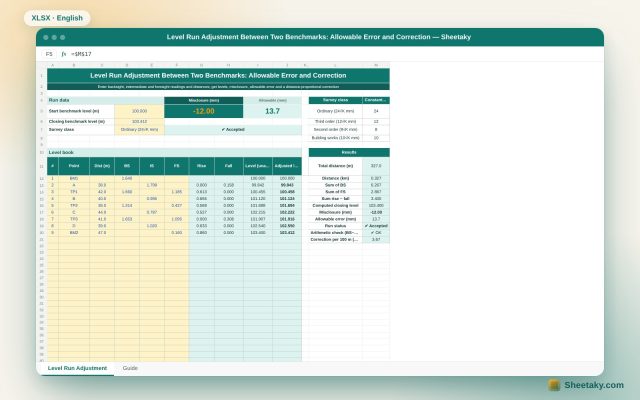
Level Run Adjustment in Excel: Misclosure, Allowable Error and Correction
An Excel sheet for a level book between two benchmarks of known level: it computes levels by the…
Land surveying
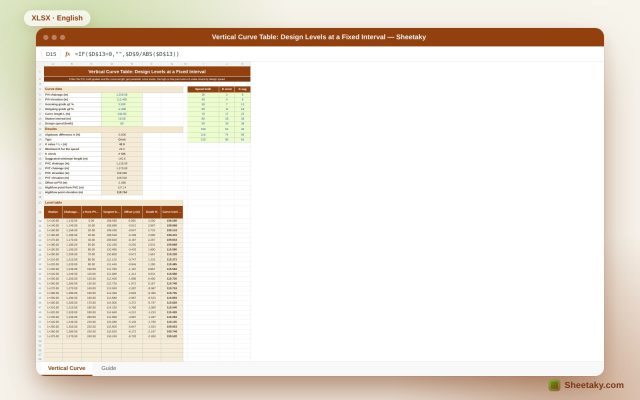
Vertical Curve Table in Excel: Design Levels, High Point and K-Value Check
An Excel sheet for designing a parabolic vertical curve between two grades: it gives a level table at…
Land surveying
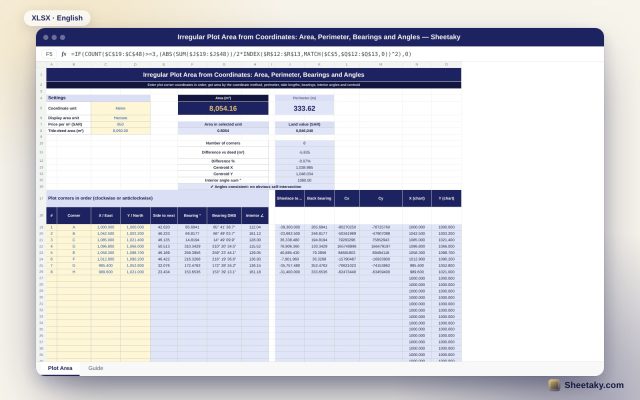
Irregular Plot Area from Coordinates in Excel: Area, Perimeter and Bearings
An Excel sheet that computes the area and perimeter of an irregular plot from its corner coordinates, with…