Project S-Curve & Cash Flow in Excel with Automatic Chart
- XLSX
- 16 KB
- Version 1.0
- English
- October 22, 2026
Ready to download
Editable Excel file
This sheet is also available in: العربية
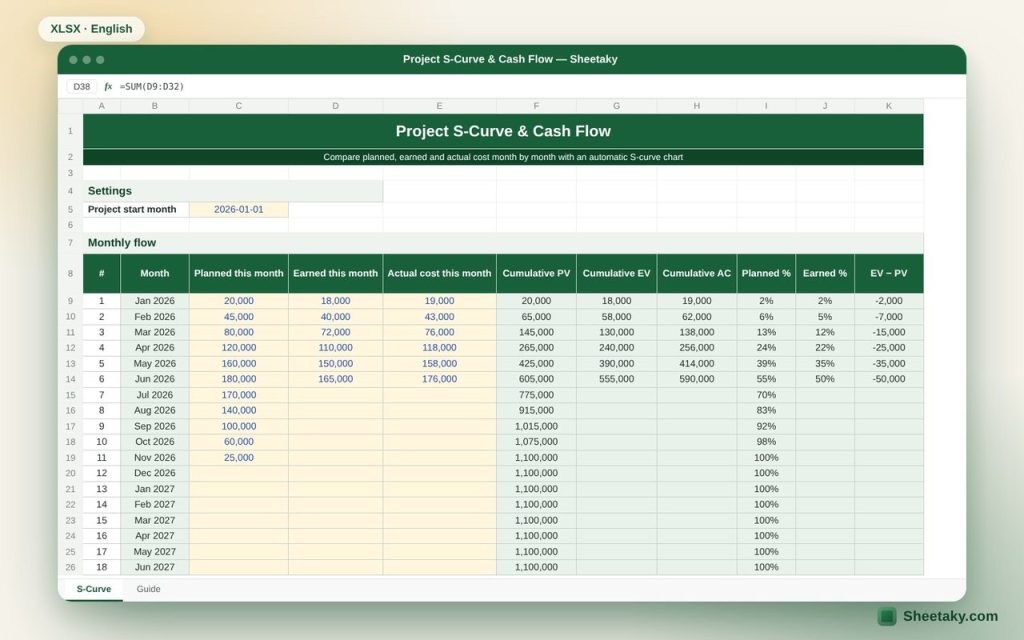
The S-curve is the picture everyone understands in project meetings: the planned line, the earned line and the spent line. The gaps between them tell you straight away if the project is late or over budget.
This sheet builds the curve automatically from monthly values for up to 24 months, calculates cumulative values and percentages, and shows SPI and CPI up to the last month you entered.
Who is it for?
- Planning and cost engineers
- Project managers preparing reports
- Contractors planning cash flow and claims
What is inside the sheet?
- A 24-month table starting from your start month
- Planned, earned and actual monthly and cumulative
- Cumulative percentages and EV − PV
- Automatic S-curve chart
- Status summary at the last month with actuals
How to use it
- Enter the project start month.
- Enter the planned value for each month from the cost-loaded schedule.
- Each month add the earned value and the actual cost.
- Watch the curve and the indices.
Formulas used
Cumulative = sum from the first month to the current monthSPI = cumulative earned ÷ cumulative planned to the same monthCPI = cumulative earned ÷ cumulative actual
Worked example from the sheet itself
An 11-month project with a planned value of 1,100,000, with six months of actuals entered:
- Cumulative planned to month six is 605,000, earned 555,000 and actual 590,000.
- SPI = 0.92 and CPI = 0.94, so the project is slightly late and over budget, and the curve shows it clearly.
Tips for best results
- Leave future months empty in the earned and actual columns so the curve does not drop to zero.
- Use the same basis (for example excluding VAT) in all three columns.
- Paste the chart into your monthly report.
Frequently asked questions
Why is it shaped like an S?
Spending is slow at the start, speeds up in the middle and slows down again during finishing and handover.
Can I use it weekly?
Yes, treat each row as a week, keeping in mind the date column steps by month.
Where do planned values come from?
From the cost-loaded schedule, or by spreading item values over their durations.
Download the sheet
Press the download button at the top of the page to get the Excel file. It includes a full guide sheet, yellow input cells and formulas protected from accidental edits. The sheet is also available in Arabic from the language switcher.
Related sheets
Project management & contracting
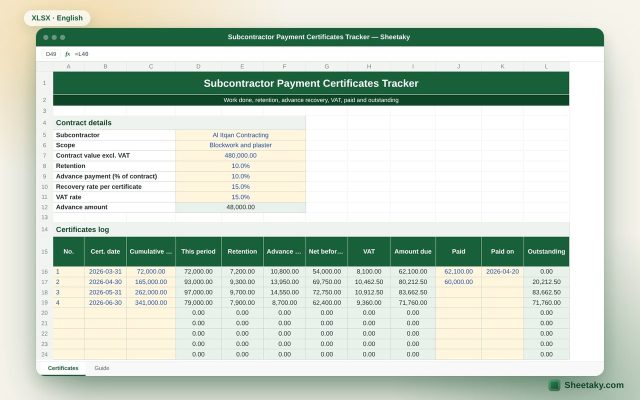
Subcontractor Payment Certificates Tracker in Excel: Retention, Advance and Payments
An Excel tracker for subcontractor certificates: this period from cumulative, retention, advance recovery, VAT, amount due, paid and…
Project management & contracting
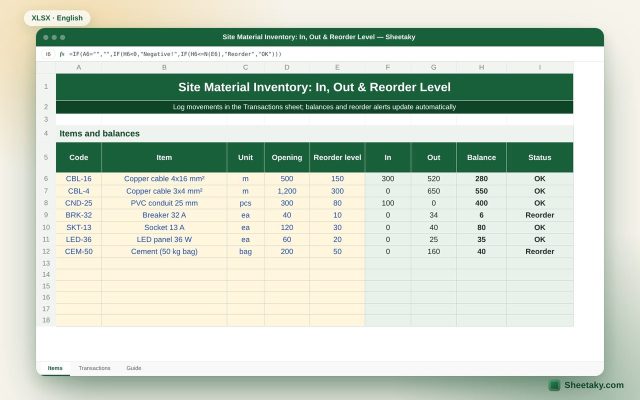
Site Material Inventory in Excel: In, Out, Balance & Reorder Level
An Excel sheet for site store stock: an items list and an IN/OUT log. It calculates current balances…
Project management & contracting
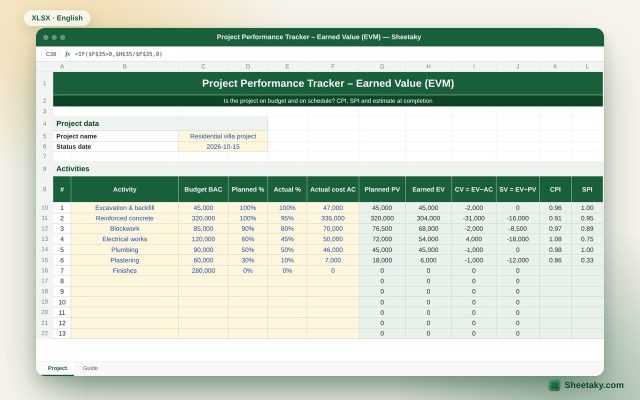
Earned Value Management (EVM) Tracker in Excel: CPI, SPI and EAC
An Excel sheet to measure project performance with earned value: PV, EV and AC per activity, CPI and…